


When HDR images do not look like HDR
If an HDR image looks like a regular image, check the Windows and BandiView settings or the file format. The message in the BandiView HDR settings window shows the cause.

HDR viewing is a paid feature available in BandiView Professional Edition.
Solutions by message in the HDR settings window
Open an HDR image in BandiView and click [HDR] at the top of the window. Find the item below that matches the message in the [HDR Settings] window.
![The [HDR] button in BandiView and the warning message in the [HDR Settings] window](hdr-setting-message.en.png?2)
When "Warning: HDR is turned off." or "Use HDR: Off" is displayed
If HDR is turned off in Windows, images are not displayed in HDR even when HDR output is turned on in BandiView.
Right-click the desktop, open [Display settings], and turn on [Use HDR].
- Windows 11: Display settings > Brightness & color > Use HDR
Open Settings - Windows 10: Display settings > Windows HD Color > Use HDR
Open Settings
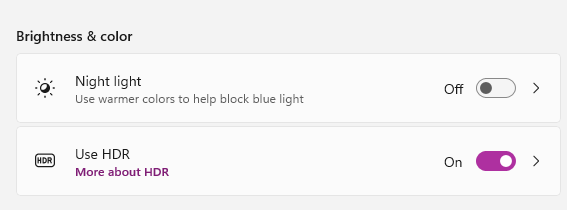
When you cannot turn on Use HDR, or it still shows "Use HDR: Off"
Check whether your monitor and graphics card support HDR. To view HDR images in HDR, you need a monitor that supports HDR10 and a graphics card that supports HDR output.
On a monitor that does not support HDR, images are displayed in SDR.
When HDR output is set to "Off"
HDR output is turned off in BandiView. In the HDR settings window, select [Auto (Recommended)]. HDR images are displayed in HDR, and regular images are displayed in SDR.
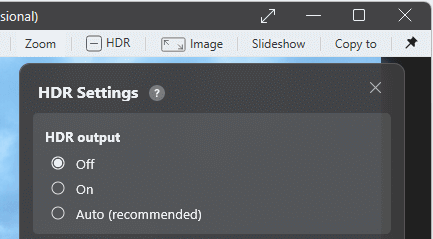
- [Off]: Displays all images in SDR.
- [On]: Always uses HDR output.
- [Auto (Recommended)]: Automatically switches between HDR and SDR based on the HDR information in the file.
When "Warning: HDR cannot be used with GDI output." is displayed
The video output method of BandiView is set to GDI. To use HDR, change it to [DirectX12].
How to change the video output setting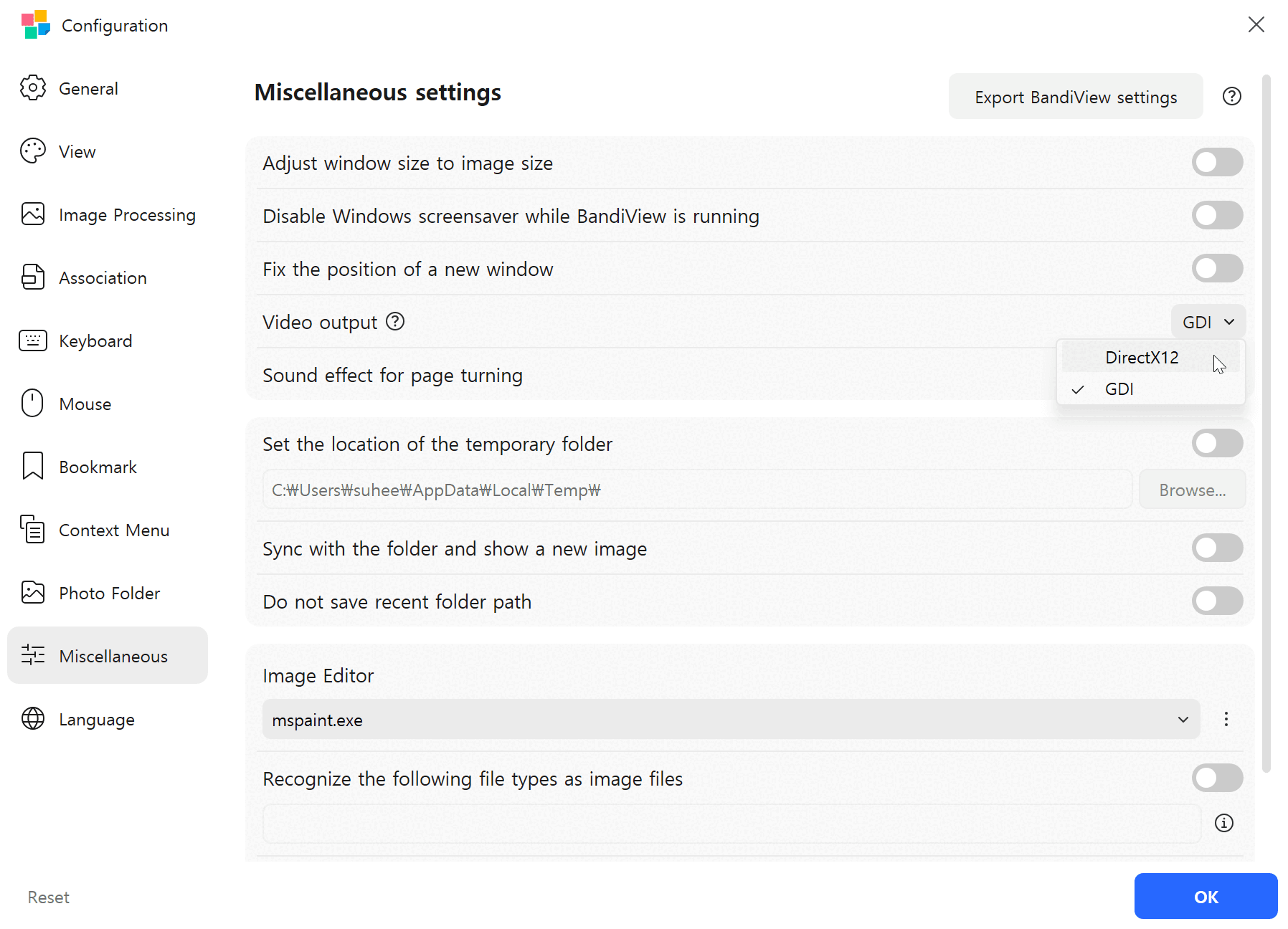
When "Not an HDR image or an unsupported format." is displayed in the image information
The open file may have no HDR information, or BandiView may not support HDR output for its format. BandiView supports HDR files in the following formats.
![The message in the image information of the [HDR Settings] window saying the image is not HDR](hdr-not-hdr.en.png?2)
- Ultra HDR (JPEG), AVIF, EXR, JXR (HDP, WDP), HEIC (HEIF, HIF)
- HDR PSD (32bit), HDR DDS, HDR JXL, HDR PNG (cICP), Radiance HDR
※ RAW (DNG, CRW, ARW, etc.) and HDR TIFF are not supported and are displayed in SDR.
Learn more about BandiView HDR supportChecking that HDR is displayed
After finishing the settings, download the sample image below and open it in BandiView. If it is displayed in HDR, you can see both the left and right text. If it is displayed in SDR, only the left text is visible.

Related help
- View HDR images with BandiView
- Turn on HDR settings in Windows
- How to view Ultra HDR JPEG files on a PC
- Test files for HDR support
Official image viewer with HDR support