


Setting up an image editor
BandiView can open the image you are viewing in another image editor. You can register an executable path together with command-line arguments to open images in a specific editing mode.
Register an image editor
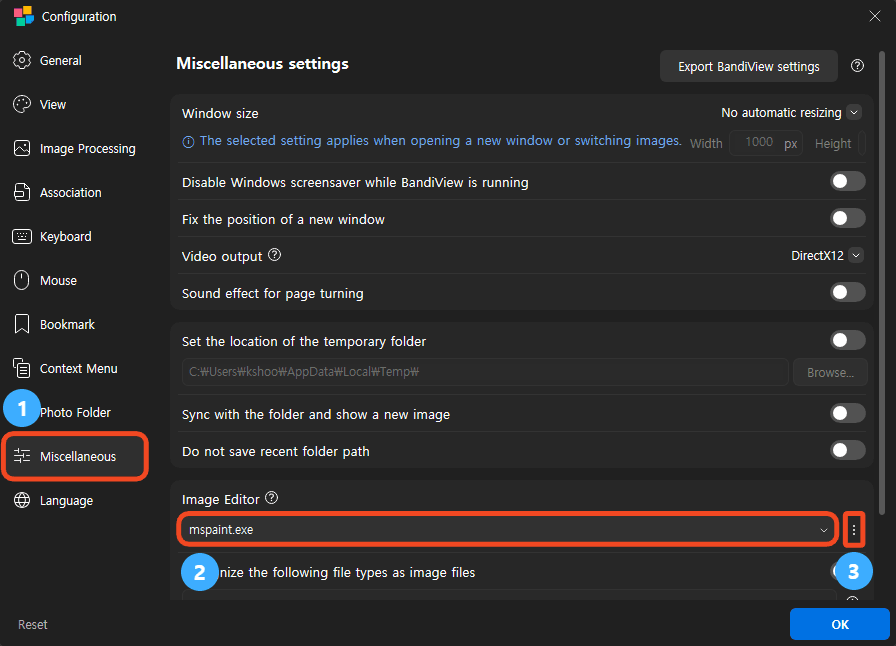
- Open "Configuration" in BandiView and select "Miscellaneous".
- Enter the executable path of your editor in the "Image Editor" field. The screenshot shows mspaint.exe, which launches Windows Paint.
- To browse for the executable file, click the button to the right of the field and select the file.
Click "OK" to save the settings. Open an image in BandiView and select "Open with Image Editor". The default shortcut is Ctrl+E.
Specify command-line arguments
Suppose your editor opens an image with the following command:
In the "Image Editor" field, replace the image file path with "%1":
When you launch the editor from BandiView, "%1" is replaced with the file path of the image you are viewing. You do not need to change the settings for each image.
- Replace the executable path with the actual installation path. If the path contains spaces, enclose it in double quotation marks.
- Enter "%1", including the double quotation marks, where the image file path should be passed.
- -Editor is an example argument. The required arguments and their order depend on the editor. Follow that editor's instructions.
Editors that do not require command-line arguments
If your editor only needs an image file path, you can register just the executable path. BandiView automatically appends the image file path to the command.