


Licentie & Registratie
Honeycam licentiebeleid
Hoe Honeycam registreren
Krijg je productsleutel opnieuw
Honeycam Edition Comparison
Refund Policy
How to unregister Honeycam
Meer licenties kopen
Functies en technische termen
GIF, WebP, AVIF en WebM formaten
APNG formaat
Kwantificering
FPS (Frames per seconde)
How to reduce GIF file size
Transition effects
Use Dither
Maximum recording time
Use Disk Swap
Use DXGI
Save as MP4 Directly
Hulp bij bewerken
How to insert/edit/animate texts
How to insert/edit/animate speech bubbles
How to insert/edit/animate stickers
How to use the photo frame effects
How to draw on animated images/videos
Tips voor Honeycam
How to maintain the quality of images when re-saving as GIF
Save as the working(current) file name after editing
Hotkeys for Honeycam
Save all settings
Probleemoplossing
Online Authentication Failed
Entry Point Not Found
How to update Honeycam
How to run Honeycam as administrator
WebP doesn't play smoothly on iPhone!
How to install AV1 codec for free
How to troubleshoot when Honeycam is shut down for no reason in a few seconds after its execution
Honeycam crashes when opening a video
When saved as GIF, the playback time is not the same.
When saving GIFs, the CPU usage is too high.
Save as the working(current) file name after editing
Honeycam saves a file as a new name.
If you want to change this behavior into saving as the working file, please do as follows.(This feature is only available for the Pro edition.)
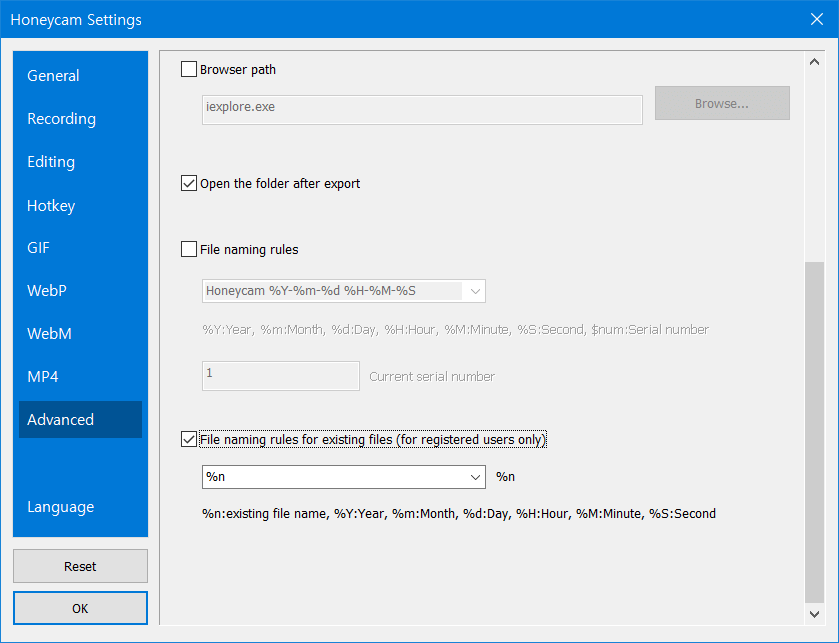
Honeycam Settings(F5) > Advanced Please turn on the option [File naming rules for current files] and select %n in the selection box. Then click OK in the left bottom. It's done.
After this, just click save button then you can save what you're editing as the current file name.